Admin Users
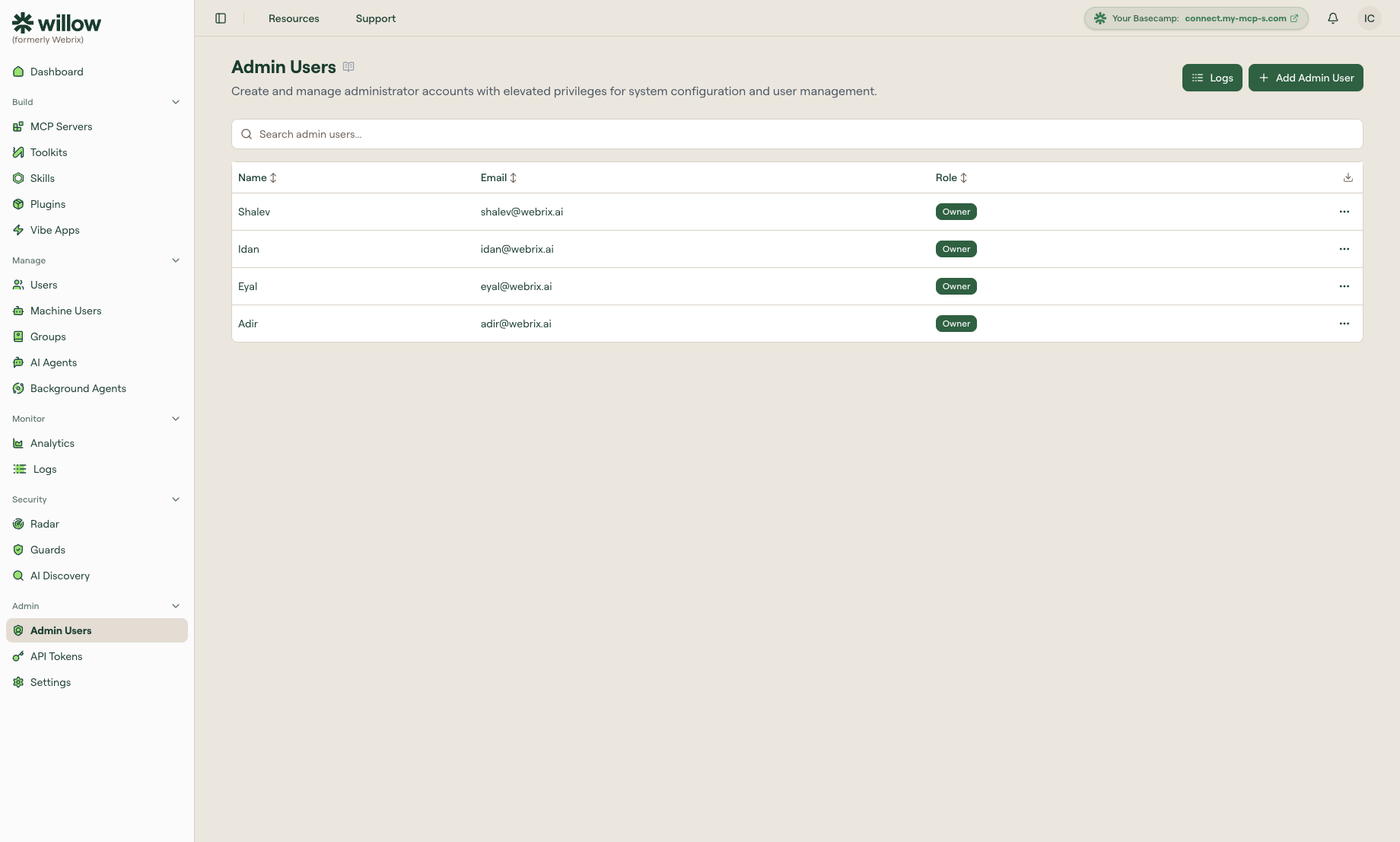
Manage administrator accounts with elevated permissions. Each admin user is assigned a role that determines what they can see and do in the dashboard.
What you can do here
- Invite and manage admin users
- Assign built-in or custom roles to admins
- Create and manage custom roles (requires the Manage Roles permission)
Built-in roles
| Role | Description |
|---|---|
| Owner | Full access to all features, settings, and admin management. Only owners can invite other admins and manage billing. |
| Security Admin | Access to monitoring, security, guards, and AI discovery. Focused on visibility and enforcement. |
| IT Admin | Access to the Build and Manage sections — integrations, toolkits, skills, plugins, users, groups, and machine users. |
| Read Only | View-only access across all sections. Cannot create, edit, or delete any resources. |
Custom roles
You can create custom roles with specific permission scopes tailored to your organization's needs. Custom roles appear alongside the built-in roles when inviting or editing an admin user.
To manage custom roles, click Manage Roles from the Admin Users page (requires the Manage Roles permission). See Roles for details.
Add an admin user
- Click Add Admin User.
- Enter the user's name and email.
- Select a role (built-in or custom).
- Save to send the invitation.
Change an admin's role
- Click the admin user in the list.
- Select a new role from the dropdown.
- Save — the change takes effect immediately.
note
You cannot change your own role. Only owners can access the Admin Users page.